The 3MF format: why it’s better than STL for 3D printing
What the 3MF format is and why it’s needed
If you’ve ever ordered 3D printing or prepared a model for printing yourself, you’ve almost certainly worked with STL files. The format appeared back in 1987 and is still the most common in 3D printing. But technology moves on: modern printers can print in several colours and different materials at once, and models keep getting more complex. That’s why the 3MF format (3D Manufacturing Format) was created — a modern alternative to STL, developed by the 3MF Consortium specifically for additive manufacturing.
3MF is an open, XML-based file format that stores not only a model’s geometry but also information about colours, textures, materials and even print settings. In essence, one 3MF file can contain everything needed to reproduce a part exactly as the model’s author intended.
3MF vs STL: a detailed comparison
To understand why 3MF is gradually replacing STL, let’s look at the key differences between the formats.
File size
STL files store geometry as a set of triangles, and each triangle is described separately — even if it shares vertices with its neighbours. This leads to a lot of duplicated data. The 3MF format uses an optimised XML-based structure with ZIP compression. In practice, this means a 3MF file can be 2–5 times smaller than the equivalent STL. For complex models with millions of polygons the difference is even more noticeable — instead of hundreds of megabytes you get a compact file that’s easy to email.
Colours and textures
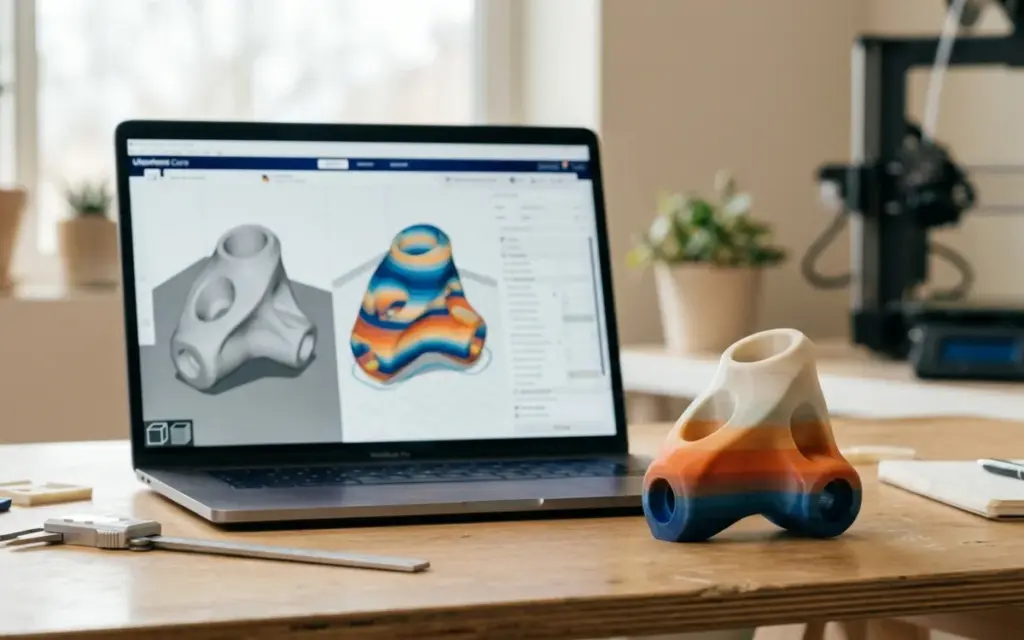
An STL file contains no colour information at all — just “bare” triangles. If your model should be multicoloured or textured, that information has to be sent separately. The 3MF format supports full colour and textures directly in the file. This is critical for multicolour printing (for example, on printers with Bambu Lab’s AMS system), where each part of the model can have its own colour or even a gradient.
Material information
Another significant advantage of 3MF is the ability to store material data. You can specify which part of the model should be printed in PLA and which in TPU or PETG. For multi-material printers this is a real breakthrough: the designer assigns materials at the modelling stage, and the slicer reads this information automatically. STL simply has nothing like it.
Model integrity and error protection
One of STL’s biggest problems is that files often contain geometry errors: open surfaces, flipped normals, self-intersections and so on. Such errors may be invisible when viewing the model but cause artefacts during printing. If you’ve ever had to prepare an STL file for printing, you know how much time repairing such geometry takes.
The 3MF format has built-in validation — the specification requires the model to be a valid closed solid. Most programs automatically check for and fix typical errors when saving to 3MF. This greatly reduces problems at the slicing and printing stages.
Extra features of 3MF
- Several objects in one file: you can save a whole assembly of parts in their correct relative positions.
- Metadata: author, description, licence and a preview thumbnail.
- Print settings: some slicers save print settings (infill, wall thickness, supports) directly in the 3MF file.
- Lattice structure support: for light and strong parts.
Which programs support the 3MF format?
Support for 3MF is quite broad today and covers most modern 3D printing tools:
- PrusaSlicer — one of the first slicers to fully support 3MF. It saves not only the model but all the project settings in this format.
- Bambu Studio — Bambu Lab’s slicer, built on PrusaSlicer. It uses 3MF as the main format for multicolour projects with the AMS system.
- Cura (UltiMaker) — a popular slicer that supports importing and exporting 3MF files.
- Fusion 360 (Autodesk) — a professional CAD environment that can export to 3MF straight from the workspace.
- SolidWorks — supports 3MF for exporting models intended for additive manufacturing.
- Blender — a free 3D editor with 3MF support via plug-ins.
- Microsoft 3D Builder — a free Windows 10/11 tool for viewing and basic editing of 3MF files.
If you’re just getting started with 3D modelling, take a look at our guide on how to create a 3D model for printing — it covers the main programs and principles.
When to use STL and when to use 3MF?
Despite all the advantages of 3MF, STL is still relevant in many scenarios. Here are simple recommendations:
Choose STL if:
- The model is one colour and one material — then STL’s simplicity is quite enough.
- You’re downloading the model from libraries like Thingiverse or Printables — most files there are still in STL.
- Your slicer or printer doesn’t support 3MF (rare for modern equipment, but it happens with older models).
Choose 3MF if:
- The model has several colours or materials.
- You want to give a customer or print service a file with all the print settings.
- You’re working with a complex multi-part assembly.
- Geometry integrity and minimising errors matter.
- You need a compact file without losing quality.
How to convert STL to 3MF
Converting between the formats is a simple procedure that needs no special skills:
- PrusaSlicer or Bambu Studio: open the STL file, then choose “File → Save project as…” — the project will be saved in 3MF format.
- Microsoft 3D Builder: open the STL file and save it as 3MF via the export menu.
- Fusion 360: import the STL as a mesh object, then export it to 3MF.
- Online converters: services such as Spin 3D or AnyConv let you convert files right in the browser without installing anything.
Note: converting from STL to 3MF keeps the geometry but doesn’t give you extra data (colours, materials) that wasn’t in the original file. To take full advantage of 3MF, it’s better to save the model in this format from the start.
Which format does our service accept?
Our 3D printing studio in Lviv works with both formats — STL and 3MF. If you have a file in either format, just send it to us and we’ll prepare the model for printing. We also accept OBJ, STEP and other common 3D model formats. If you’re not sure which format to choose, we’ll help you decide and convert the file if needed at no extra charge.
Ready to print your 3D model?
Send the file in STL, 3MF or any other format — we’ll quote it for free and print your part well and quickly. We work with all the popular materials: PLA, PETG, TPU and more.
Want to test an idea for real? Send the model — we’ll print it in PLA or PETG and quote it within an hour.