How to create a 3D model — free software for beginners
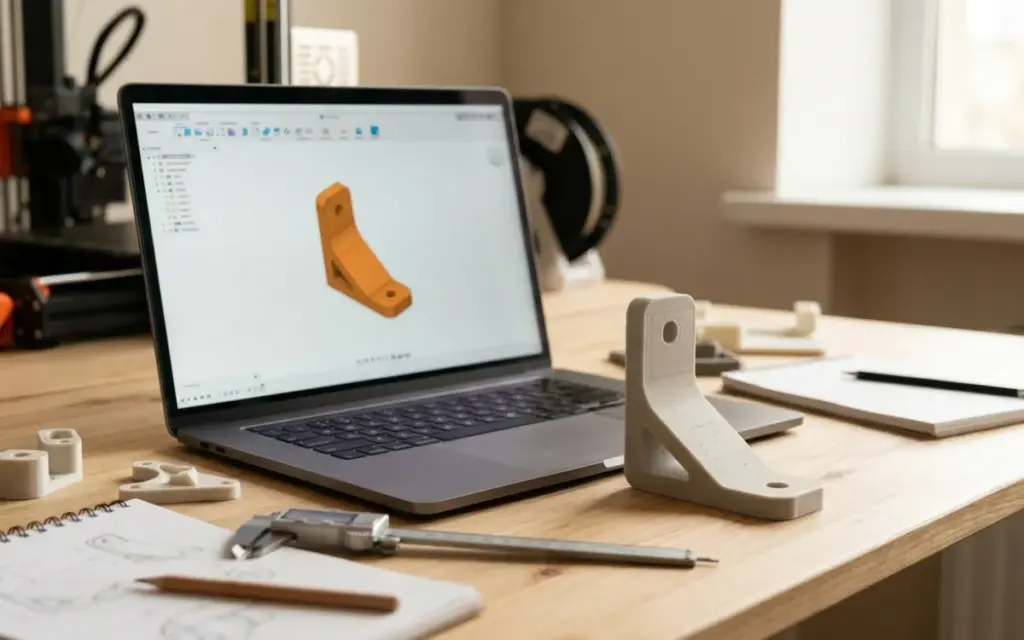
How to create a 3D model for printing: an overview of free software for beginners
3D printing starts not with a printer but with a model. The quality of the 3D model determines how accurate and functional the printed part will be. Many people think creating models needs expensive software and years of training. In fact, there are plenty of free programs that let you start modelling today — even with no experience.
In this article we look at the five best free 3D modelling programs for preparing files for printing. For each one we give the difficulty level, strengths and the official website.
1. Tinkercad — the easiest start in 3D modelling
Difficulty: beginner
Best for: simple parts, enclosures, toys, educational projects
If you’ve never done any 3D modelling, Tinkercad (tinkercad.com) is the perfect place to start. It’s a free online editor from Autodesk that runs right in your browser with nothing to install.
The way it works is intuitive: you drag basic shapes (cubes, cylinders, spheres) onto the workplane, resize them and combine them. Shapes can be merged or subtracted from one another to create holes and more complex forms.
- Runs in the browser — nothing to install
- An interface even children understand
- One-click STL export for 3D printing
- Ready-made templates and a shape library
Tinkercad is great for your first steps, but for complex engineering parts with precise dimensions it may not be enough.
2. Fusion 360 — a professional tool with a free licence
Difficulty: intermediate
Best for: engineering parts, mechanisms, functional prototypes
Fusion 360 (autodesk.com/products/fusion-360) from Autodesk is a powerful CAD/CAM system that’s free for personal use. It combines parametric modelling, rendering and manufacturing preparation in one environment.
- Parametric modelling — dimensions are easy to change at any stage
- Support for multi-part assemblies
- Built-in stress analysis and simulation
- Cloud storage and collaboration
- A free licence for personal use
Fusion 360 takes longer to learn than Tinkercad but rewards you with far broader capabilities. If you plan to create parts with precise tolerances and technical requirements, it’s one of the best options.
3. Blender — a versatile tool for organic shapes
Difficulty: intermediate to advanced
Best for: figurines, sculptures, decorative items, organic shapes
Blender (blender.org) is free, open-source software and an industry standard for 3D graphics. Although Blender is more often associated with animation and visualisation, it’s also great for preparing models for 3D printing.
- Completely free and open source
- A sculpting mode for creating organic shapes
- Powerful polygon modelling tools
- A huge community and thousands of free tutorial videos
- Built-in tools for checking a model before printing
Blender has a steeper learning curve, but if you need to create a character figurine, a decorative piece or anything with smooth, organic lines, you won’t find a better free tool.
4. FreeCAD — parametric modelling without limits
Difficulty: intermediate
Best for: technical parts, enclosures, mechanical components
FreeCAD (freecad.org) is free, open-source software for parametric 3D modelling. It’s aimed at engineering design and is an alternative to commercial CAD systems.
- Completely free and open source
- Sketch-based parametric modelling
- A modular architecture with extra workbenches
- Import and export of many formats, including STL and STEP
FreeCAD is especially good for those who want to work with technical drawings and need precise control over part dimensions.
5. OpenSCAD — 3D modelling with code
Difficulty: intermediate (basic programming skills needed)
Best for: parametric parts, mounts, series of items in different sizes
OpenSCAD (openscad.org) is a unique tool in which you create a model not with the mouse but with a scripting language. You describe the geometry in code, and the program generates the 3D model.
- Free and open source
- Ideal for parametric models — change one variable and the whole part is recalculated
- Easy to create series of parts in different sizes
- The result is always precise and reproducible
If you have programming experience, OpenSCAD may become your fastest tool for creating technical parts.
Which program should you choose?
- Complete beginner — start with Tinkercad to understand the basics
- Engineering parts with precise dimensions — Fusion 360 or FreeCAD
- Figurines, sculptures, decor — Blender
- Parametric parts and series — OpenSCAD
Whichever program you choose, the main thing is to export the result as an STL. It’s the standard format for 3D printing and is supported by all the programs above. Read more about preparing a file for printing in our article how to prepare an STL file for 3D printing.
Useful tips before you create a model
Take 3D printing’s limits into account
Not every shape can be printed. Overhanging features need supports, very thin walls can break, and very small details simply won’t print. Before modelling, it’s worth checking what your chosen printing material can do.
Check the model before sending it for printing
Make sure the model is “watertight” (manifold) — that is, it has no open faces, holes or flipped normals. Most programs have built-in tools for checking this.
Don’t want to model it yourself?
We understand that 3D modelling isn’t for everyone. If you have an idea but don’t feel like modelling it yourself, message us: we’ll tell you where to find a ready-made model (on Printables, Thingiverse or MakerWorld) or who can make one. We’ll print the ready-made model in PLA or PETG.
Order 3D printing from your model →
Don’t want to prepare the file yourself? Send the model as it is — we’ll check it, fix any errors and quote it within an hour.